
Viewer window · 11
The viewer toolbar
Windows viewer
Use the toolbar on the right of the viewer title bar for the Settings menu and for file, sound, chat, drawing and full-screen tools.
Step by step
- Check the connection details (route, fps, bitrate) in the title bar.
- Open the Settings menu with the ⋯ button to change quality, frame rate, view mode, video cursor, resolution and input method.
- From Other in the Settings menu, open file transfer, drag-out fetching, chat, drawing, camera, reboot and restart program.
| Item | Meaning |
|---|---|
| Toolbar | ⋯ Settings / File transfer / Sound / Chat / Drawing / Full screen |
| Settings menu | Quality / Frame rate / View mode / Video cursor / Resolution / Input method / Other |
| Other | File transfer, drag-out fetching, chat, drawing, camera, reboot, restart program |
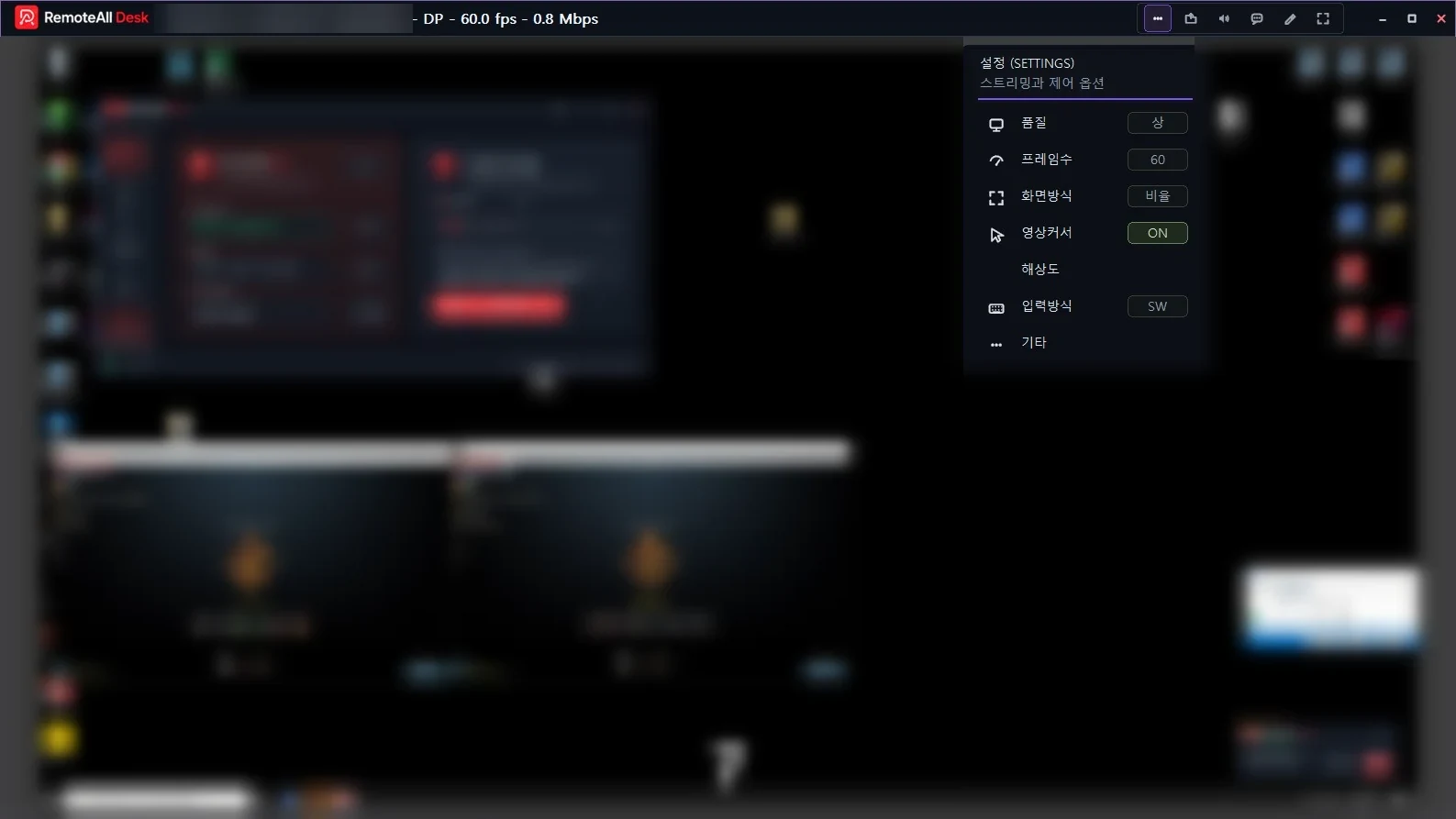
- 1 Connection details: route (D, DP, R), fps, bitrate
- 2 Open the Settings menu (⋯)
- 3 File transfer
- 4 Sound on/off
- 5 Chat
- 6 Screen drawing
- 7 Full screen
- 8 Quality and frame rate
- 9 View mode, video cursor, resolution
- 10 Input method (SW or HW)
- 11 Other (file transfer, restart and more)
Numbers are explanatory overlays and do not appear in the application.
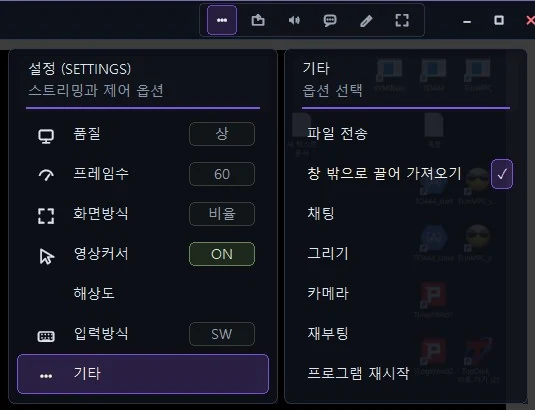
- 1 Open the file transfer window
- 2 Turn drag-out fetching on or off
- 3 Chat and drawing
- 4 Camera
- 5 Reboot and restart program
Numbers are explanatory overlays and do not appear in the application.