
iPhone · 31
Share your iPhone screen (view only)
The iPhone app is coming soon. This chapter describes the tested pre-release build; installation will be available after its App Store release. Dedicated iPad support is not announced.
iPhone host
Show your iPhone or iPad screen to someone else. They can only view it, not control it.
Step by step
- In the app, tap Start screen sharing, then tap Start Broadcast in the iOS screen recording prompt.
- Tell the other person the access number and temporary password shown on screen.
- When finished, stop the broadcast from the red indicator in the status bar or from Control Center.
| Item | Meaning |
|---|---|
| View only | The other side can view but not control |
| Temporary password | Shown on the screen where you started sharing |
| Stop sharing | Stopping the broadcast ends the connection |
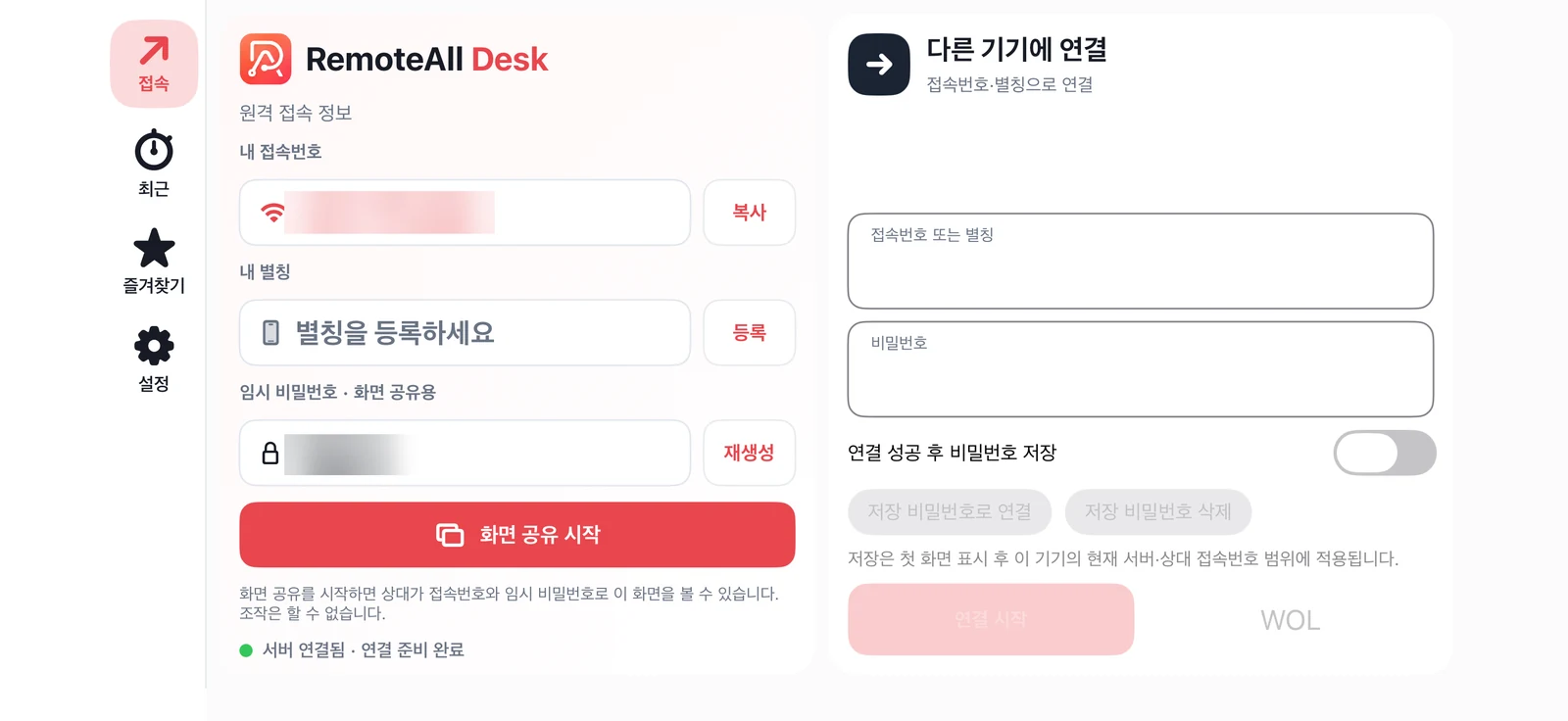
- 1 Side menu: Connect, Recent, Favorites, Settings
- 2 Your access number
- 3 Register an alias
- 4 Temporary password (for screen sharing) and Regenerate
- 5 Start screen sharing (view only)
- 6 Server connection status
- 7 Connect to another device: number or alias, password
- 8 Start connection / WOL
Numbers are explanatory overlays and do not appear in the application.