
Explore the app · 04
The main screen
Windows
The left side shows your own device; the right side is where you connect to another device.
Step by step
- Check your access number, alias and temporary password.
- Enter the other device’s access number or alias in Connect to another PC.
- Check the target and its status (online or offline), then select Connect.
| Item | Meaning |
|---|---|
| Your access number | The 9-digit number others use to find your device |
| Your alias | A registered name you can use instead of the number |
| Temporary password | Lets someone connect without approval. Share it only with the person who needs it |
| Connect to another PC | Number or alias input and the Connect button |
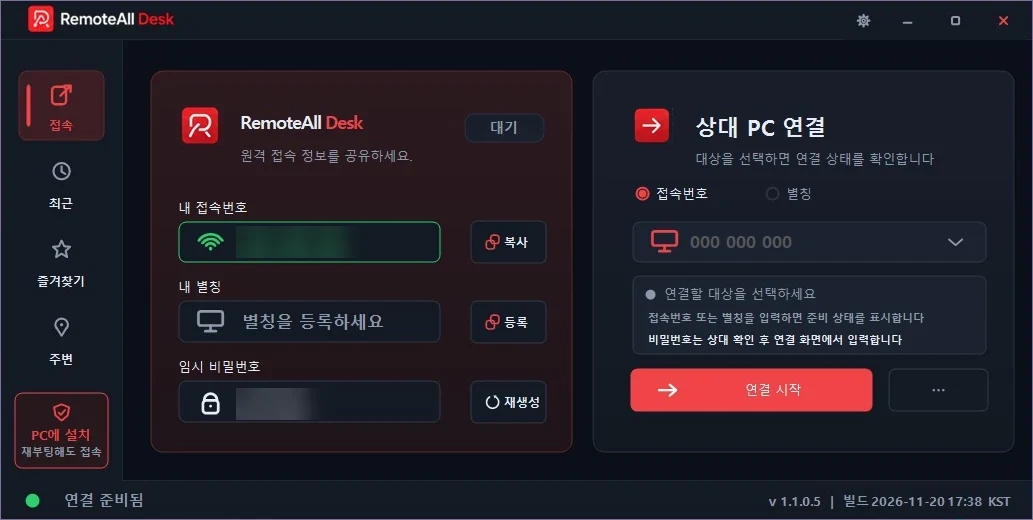
- 1 Side menu: Connect, Recent, Favorites, Nearby
- 2 Your access number and Copy
- 3 Register your alias
- 4 Temporary password and Regenerate
- 5 Choose access number or alias, and enter the other device
- 6 Start connection
- 7 Install on this PC (switch to the installed edition)
- 8 Connection status and version
Numbers are explanatory overlays and do not appear in the application.