
Files · 20
The file transfer tool
Windows · Mac · iPhone · Android viewer
Send and receive files and folders in a two-pane window: your device on the left, the remote device on the right.
Step by step
- Open the file transfer window: on Windows, Other → File transfer; on Mac, File transfer in the top bar; on iPhone, Files in the floating menu; on Android, Tools → Send and receive files.
- Jump to common places with the Desktop, Documents, Downloads, Home and drive buttons, or type a path.
- Select items and choose Send or Receive. On Windows and Mac you can also drag between the two lists, or drop files from Explorer or Finder onto the remote list.
- Check the progress bar at the bottom. The receiving device also shows progress (a notification on Android).
| Item | Meaning |
|---|---|
| Your device | Folders on the viewer device |
| Remote device | Folders on the connected host |
| Quick locations | Desktop, Documents, Downloads, Home, drives |
| Progress | In progress, complete or error |
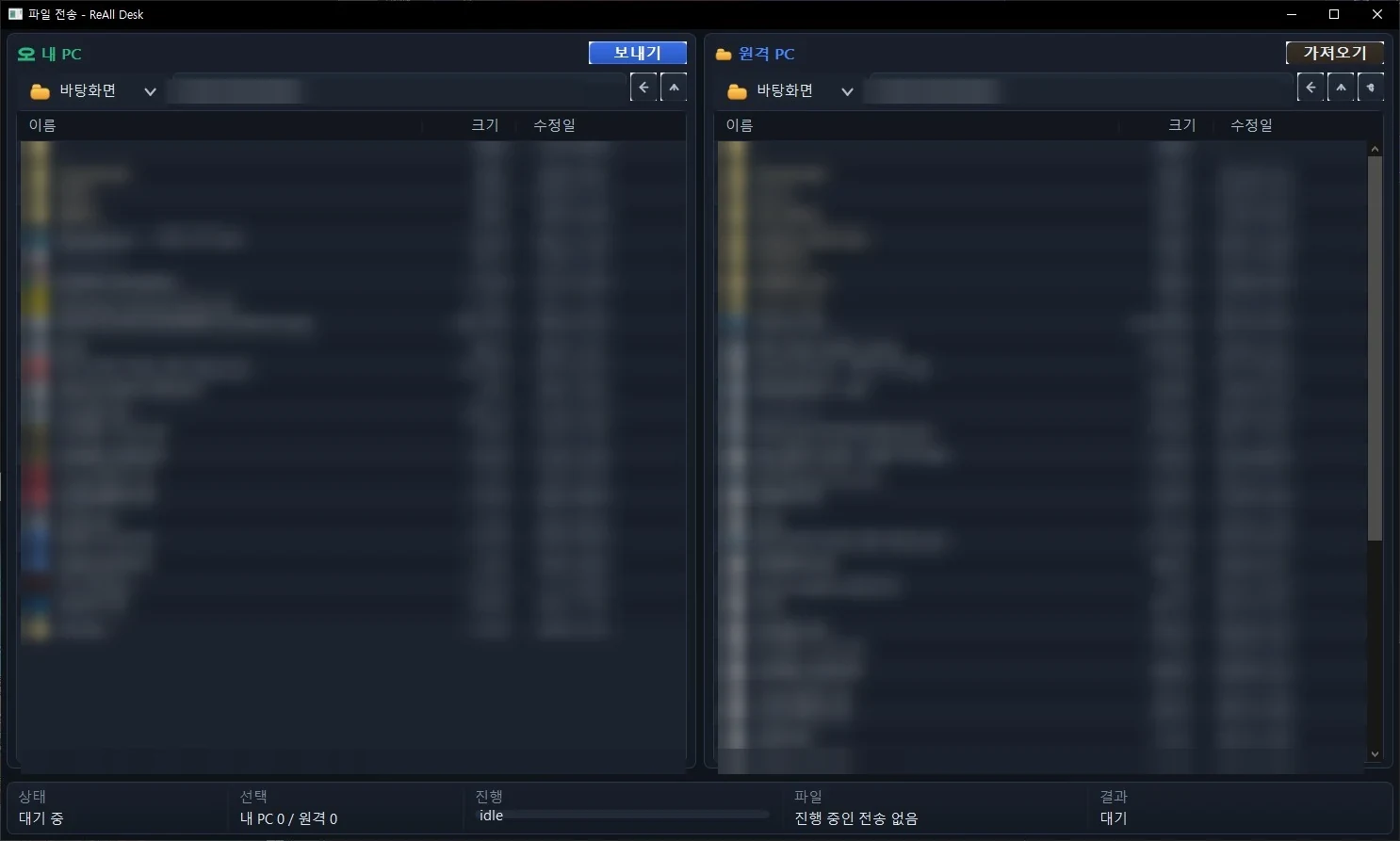
- 1 Your PC (left list)
- 2 Send: selected items to the remote PC
- 3 Remote PC (right list)
- 4 Fetch: selected items to your PC
- 5 Quick locations (desktop, documents, downloads, drives)
- 6 Type a path
- 7 Back and parent folder
- 8 Transfer progress
- 9 Result
Numbers are explanatory overlays and do not appear in the application.
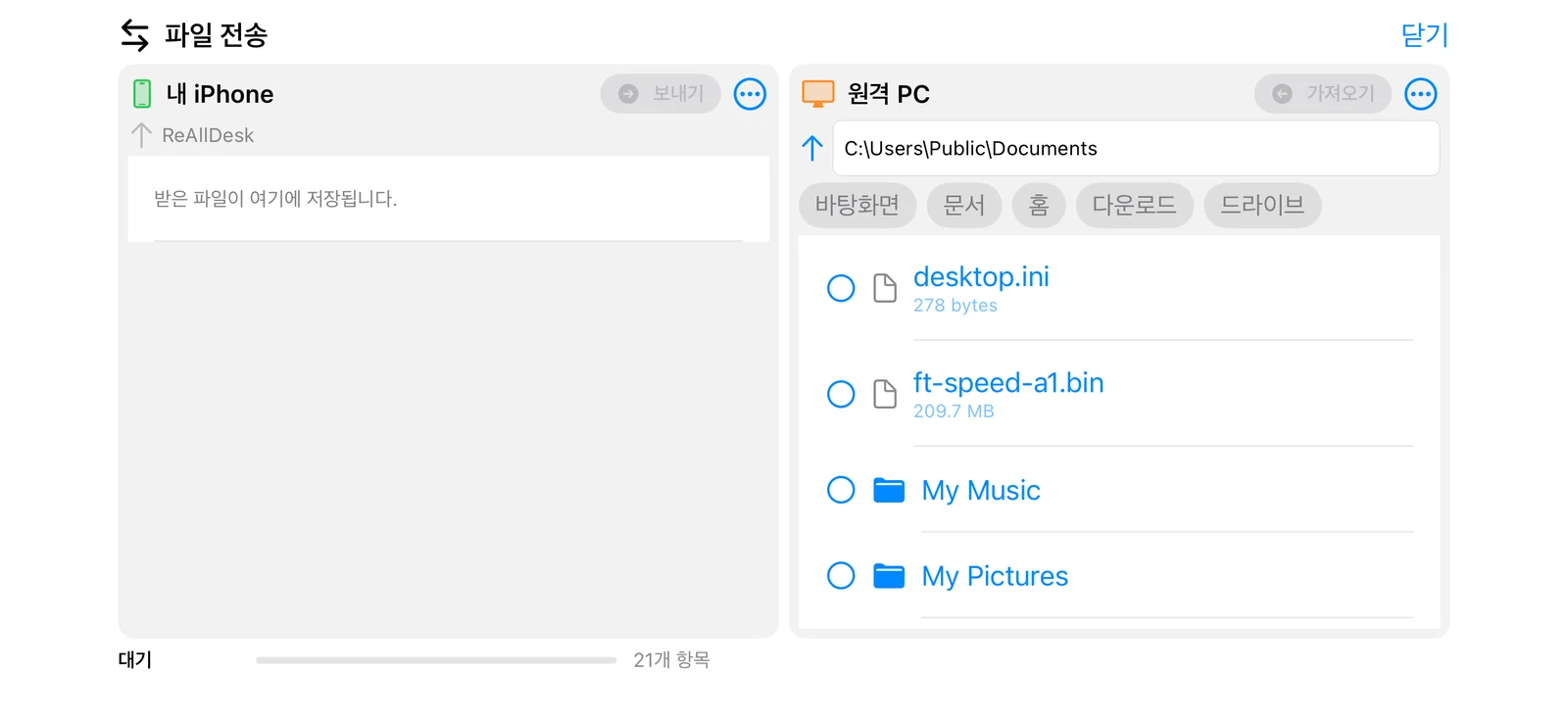
- 1 Your iPhone (received files go to the ReAllDesk folder)
- 2 Send
- 3 Remote PC
- 4 Fetch
- 5 Remote path
- 6 Quick locations: desktop, documents, home, downloads, drives
- 7 Progress
- 8 Close
Numbers are explanatory overlays and do not appear in the application.