
Android · 34
Connect and control from Android
Android viewer
Connect by number or alias, then choose a pointer mode and tools.
Step by step
- Enter the access number or alias, and a password if needed, then connect.
- In Settings, choose Click mode or Trackpad mode, whichever you prefer.
- Use Tools for monitors, codec, FPS and sending or receiving files.
| Item | Meaning |
|---|---|
| Click mode | Acts where you tap |
| Trackpad mode | Move a pointer to control |
| Tools | Monitor, quality, files |
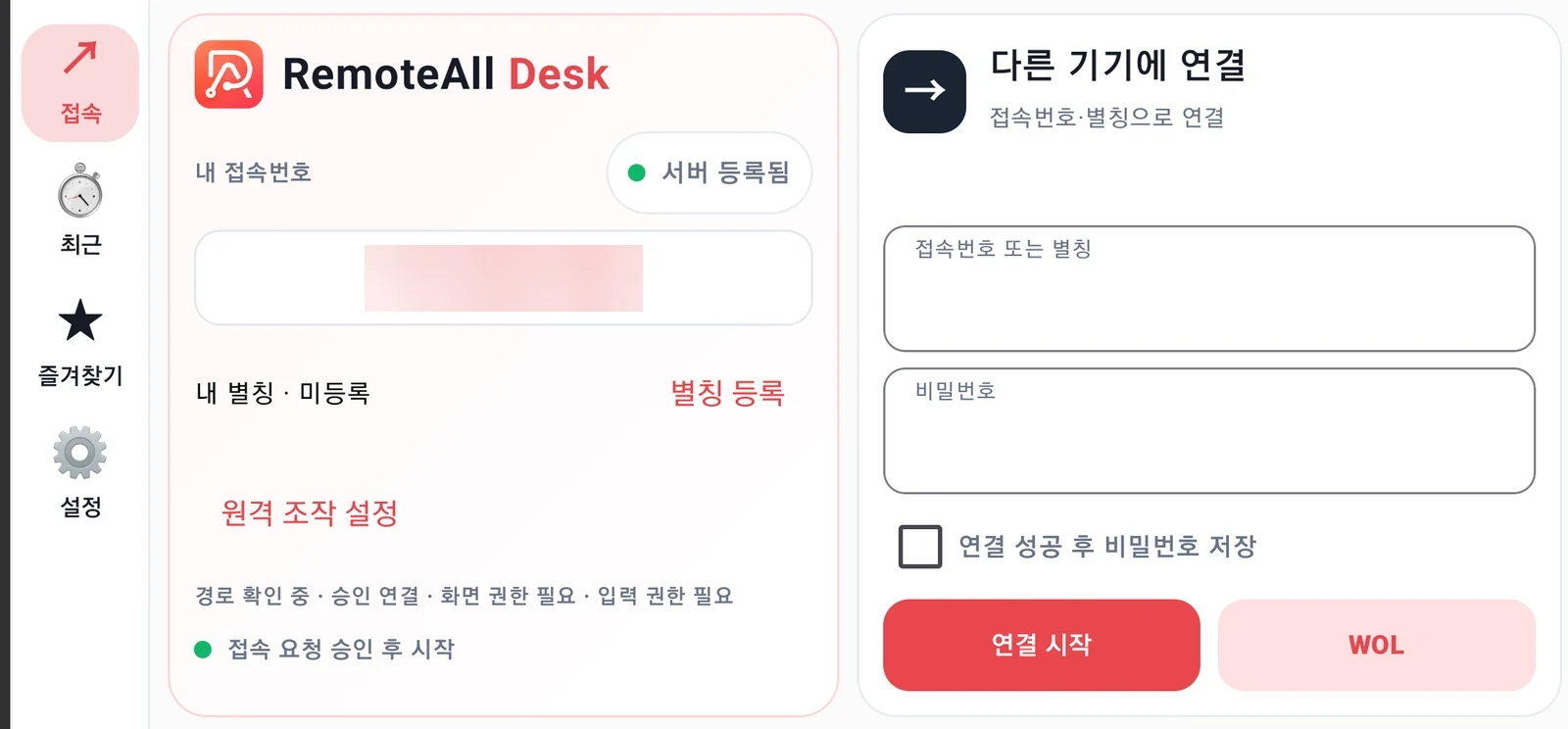
- 1 Side menu: Connect, Recent, Favorites, Settings
- 2 Your access number
- 3 Server registration status
- 4 Register an alias
- 5 Remote control setup (screen sharing and Accessibility)
- 6 Your screen-sharing status
- 7 Other device's number or alias
- 8 Password (if needed)
- 9 Save the password after a successful connection
- 10 Start connection
- 11 Wake a PC with WOL
Numbers are explanatory overlays and do not appear in the application.