
iPhone · 30
Connect and control from iPhone
The iPhone app is coming soon. This chapter describes the tested pre-release build; installation will be available after its App Store release. Dedicated iPad support is not announced.
iPhone viewer
Connect to a PC or Mac by access number and control it by touch.
Step by step
- Enter the access number or alias and connect. Enter a password if needed.
- Choose Direct touch (tap to click) or Touchpad (move a pointer), whichever you prefer.
- Use the floating menu for the on-screen keyboard, monitor switching, files and disconnect.
| Item | Meaning |
|---|---|
| Direct touch | Clicks where you tap |
| Touchpad | Move a pointer with your finger |
| Floating menu | Keyboard, monitors, files, disconnect |
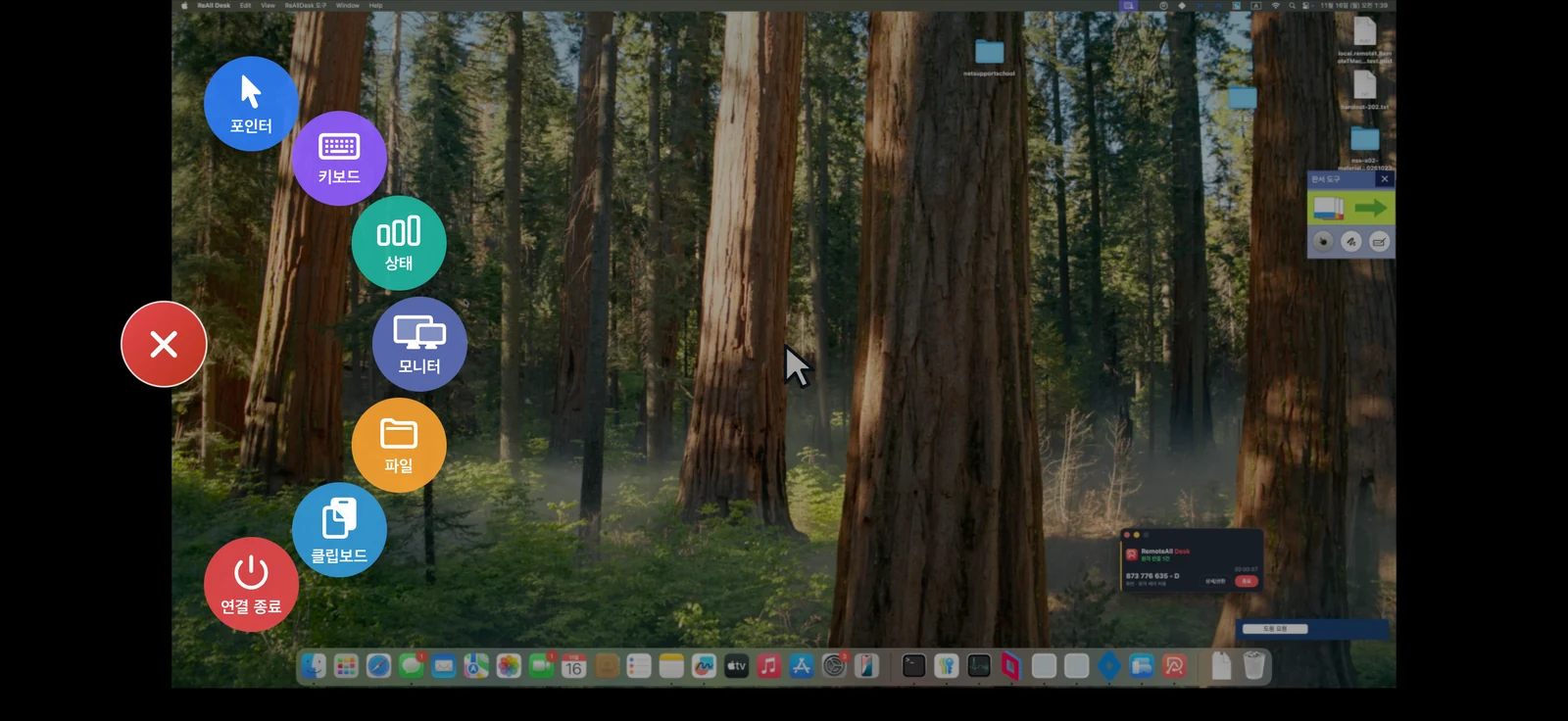
- 1 Pointer mode (direct touch or touchpad)
- 2 On-screen keyboard
- 3 Connection status
- 4 Switch monitor
- 5 File transfer
- 6 Clipboard
- 7 Disconnect
- 8 Collapse the menu
Numbers are explanatory overlays and do not appear in the application.