
Connecting · 09
Trusted devices and approval policy
Windows host
The default is to approve each request or check a password every time. Use trusted devices according to your organisation’s security policy.
Step by step
- Review each connection request on the host before approving it explicitly.
- When using a password, make sure it matches the value currently set on the host.
- In Settings > Trusted devices, check the registered devices and remove any you do not need.
| Item | Meaning |
|---|---|
| Recommended | Approve each time or check a password |
| Trusted devices | Manage the list of registered devices |
| Organisations | Manage according to internal security policy |
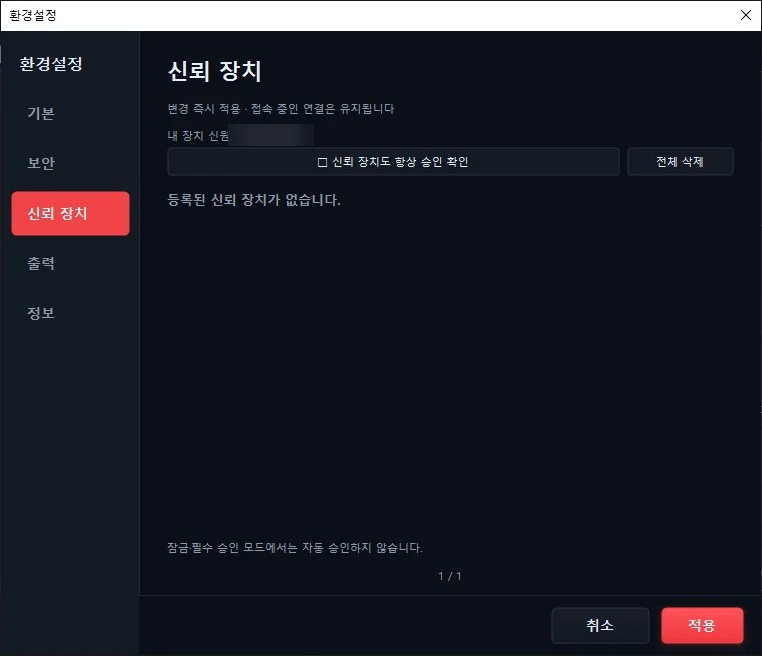
- 1 This device’s trust ID
- 2 Always ask for approval, even for trusted devices
- 3 Delete all
- 4 Registered trusted devices
Numbers are explanatory overlays and do not appear in the application.