
Host controls · 22
Approval window and session permissions
Windows · Mac host
When a request arrives, check the requester in the approval window and choose which features to allow for this connection.
Step by step
- In the approval window, check the requesting device number and whether it is connecting for the first time.
- Allow only what is needed: remote control, clipboard, sound, camera, files, restart and drawing.
- Approve requests you recognise and deny those you do not.
| Item | Meaning |
|---|---|
| Request details | Requesting device and remaining approval time |
| Session permissions | Features allowed for this connection |
| Approve or deny | Handles the request |
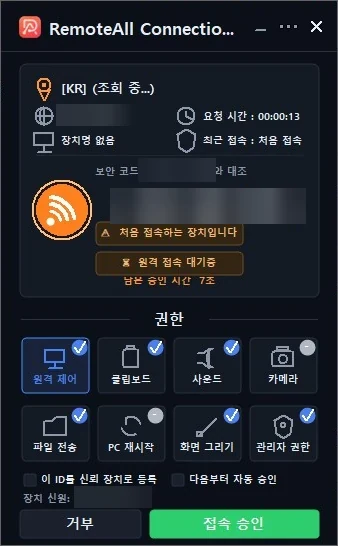
- 1 Requester details: location, IP, request time, last access
- 2 Security code: check it matches the code on the other screen
- 3 Access number of the requesting device
- 4 Whether it is a first-time device, and the remaining approval time
- 5 Permissions for this connection (only checked items are allowed)
- 6 Register as trusted device / approve automatically next time
- 7 Deny
- 8 Approve
Numbers are explanatory overlays and do not appear in the application.